
Transfer a chat to a teammate or department
The right person for the question isn't always the one who picked up the chat. Hand it over without losing the customer. This video shows how to transfer a chat using the transfer icon in the conversation, choose a department or an individual agent, and add a note explaining what's going on. You'll see what your visitor sees while the transfer happens, how the transfer appears in the conversation, and how to cancel it before it's accepted. For example, a customer asks about shipping a mug set to Auckland, so you transfer the chat to the Orders department with a short note and they take it from there.
· Share this video
· More in this topic
Managing Conversations: Inbox, Chats & Contacts
- Add a note to a contact
- Adding direct messages and group chats to tabs
- Export your chats and tickets
- Delete and Restore Chats and Tickets
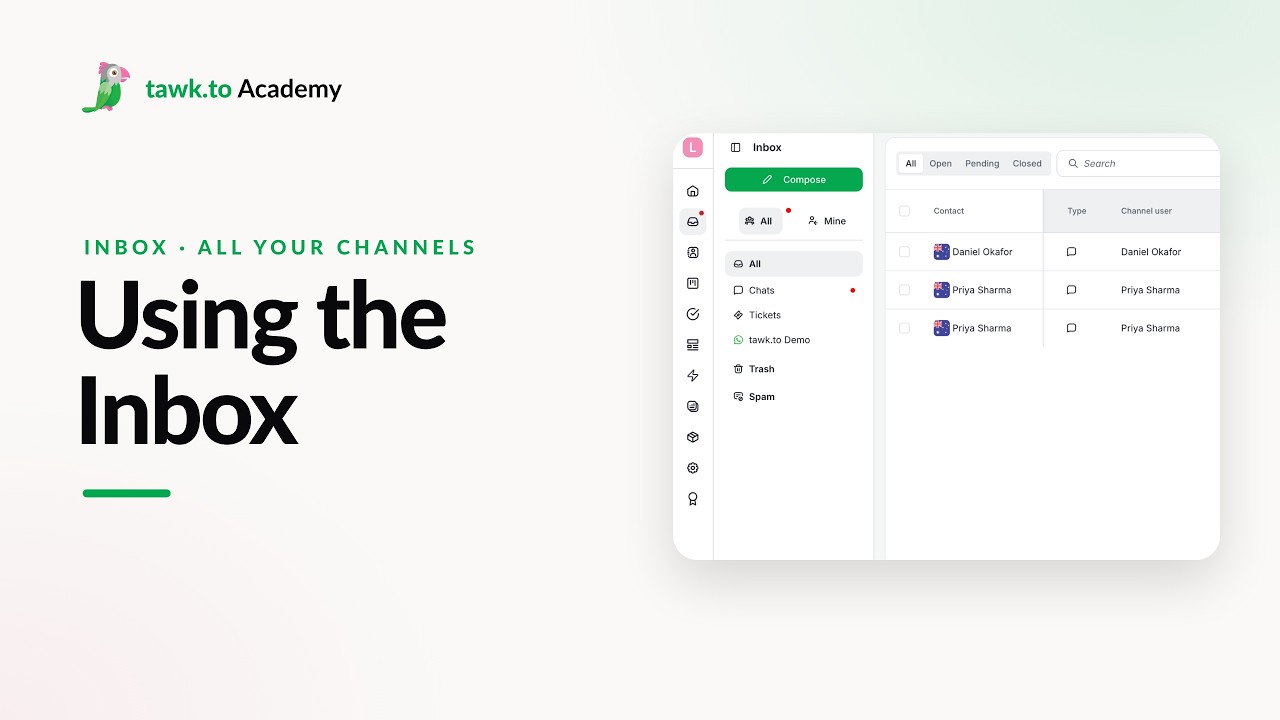
- Using the tawk.to Inbox
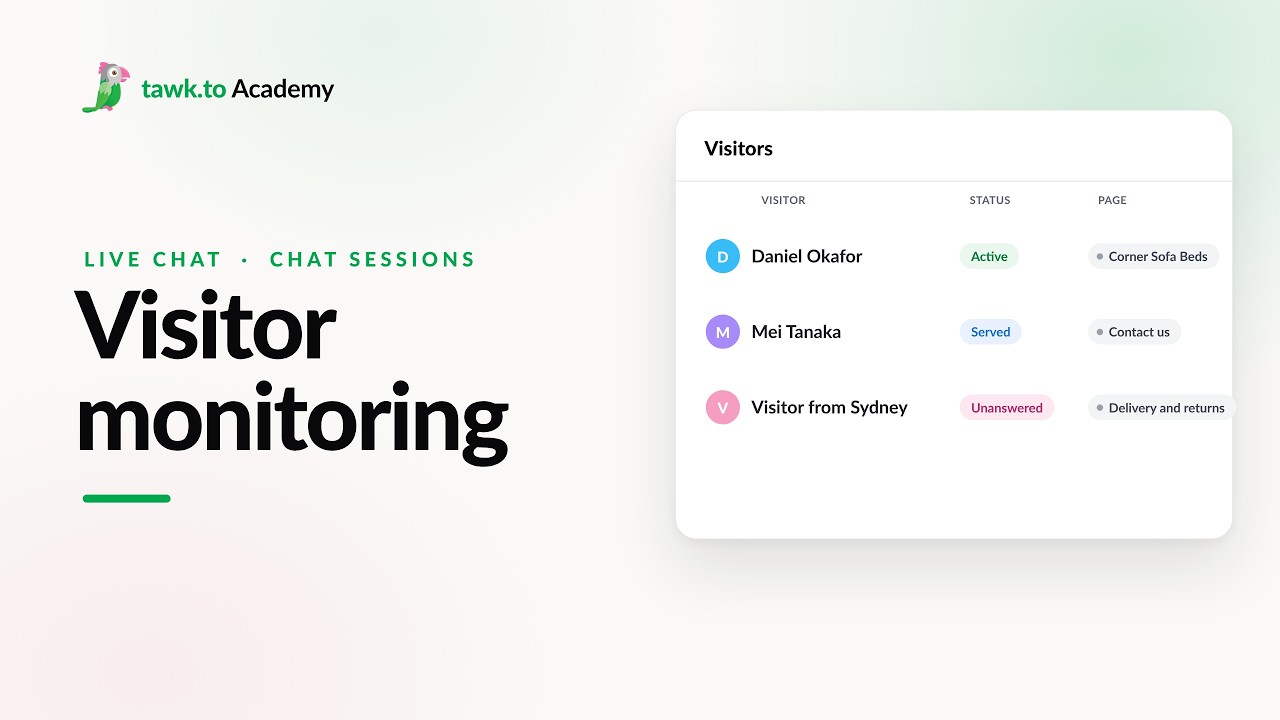
- Monitor Visitors on Your Site in Real Time
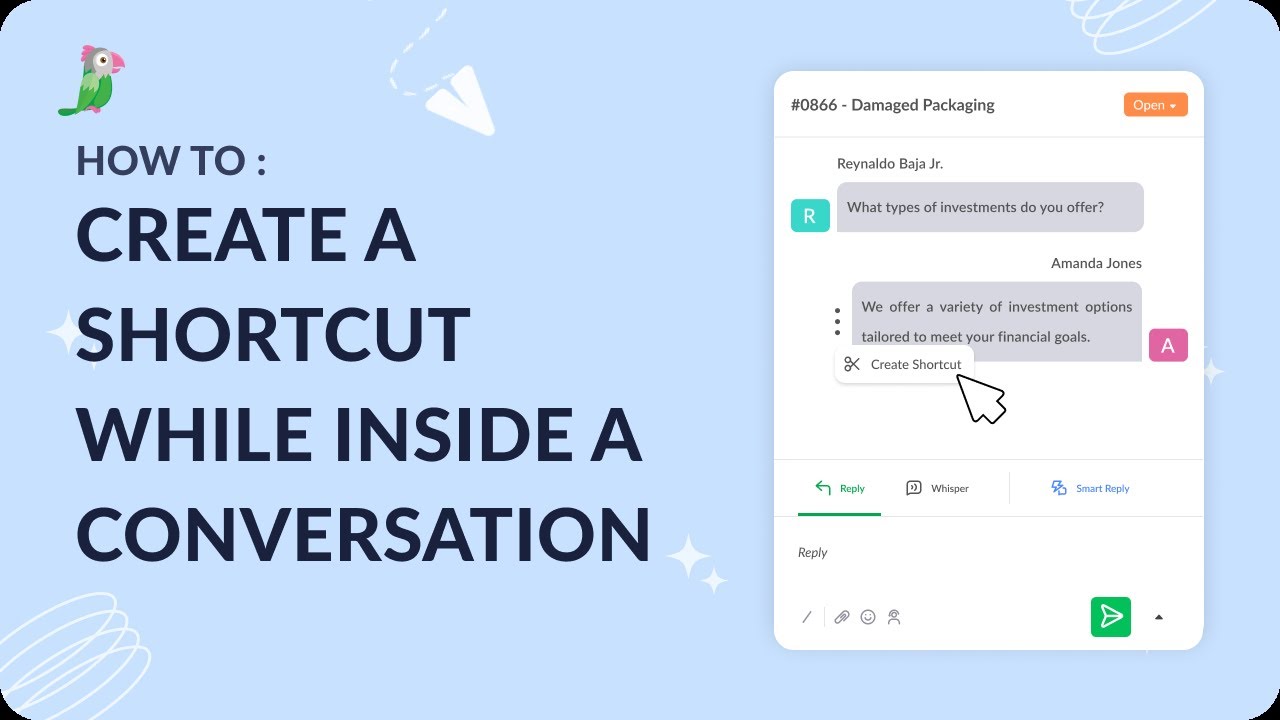
- Creating a shortcut while inside a conversation
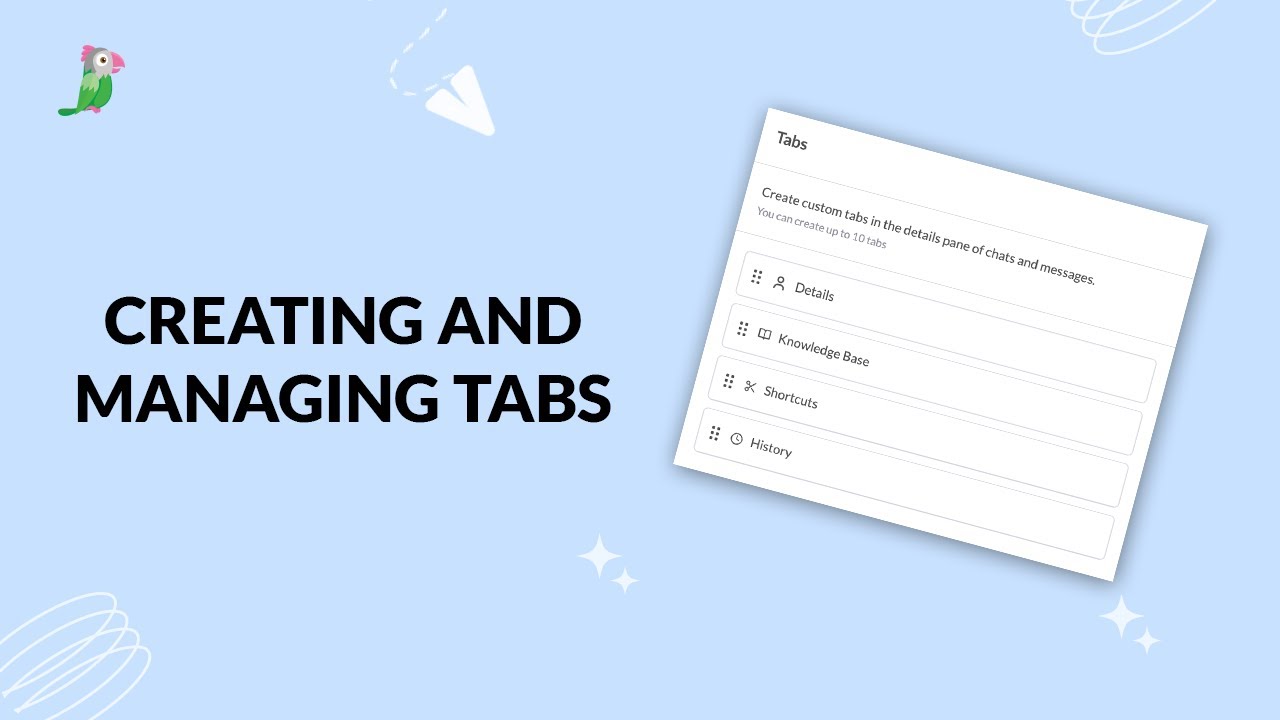
- Creating and managing tabs
Open the tawk.to Academy
Every topic and 220+ videos in one place.