
Pausing a Workflow with Wait Steps
Sometimes you’ll want to give a customer a few days to book before you follow up. The Wait step lets you do that by pausing a run for a set time, or until something happens. This video shows how to add a Wait step and choose between a simple delay and waiting for an event, like a card moving to a new stage. You’ll also see how to set a timeout and decide what happens if nothing arrives, how to add a follow-up step on the “Nothing arrives” path, and how to track or cancel a waiting run in the Runs tab. Then see it in action with an example that gives a quote 3 days to move forward before your team gets a Call activity to follow up.
· Share this video
· More in this topic
Workflows
- Getting Started with Workflows
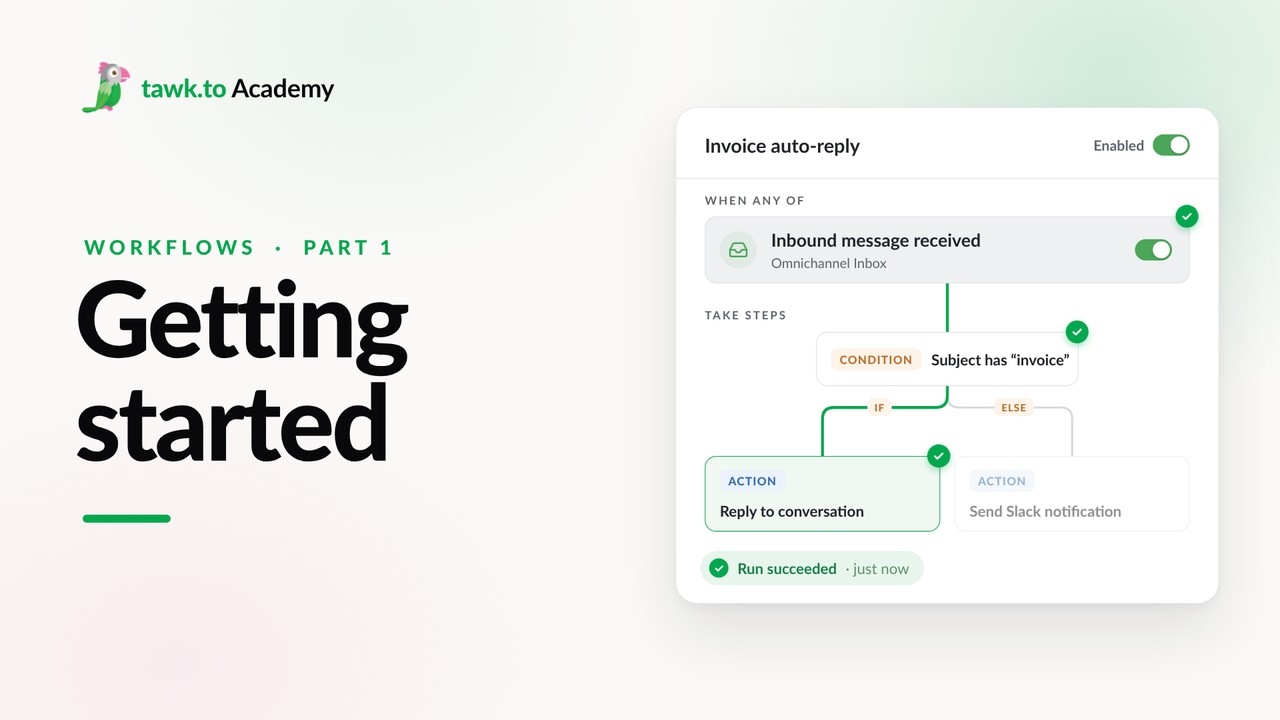
- Choosing a Workflow Trigger
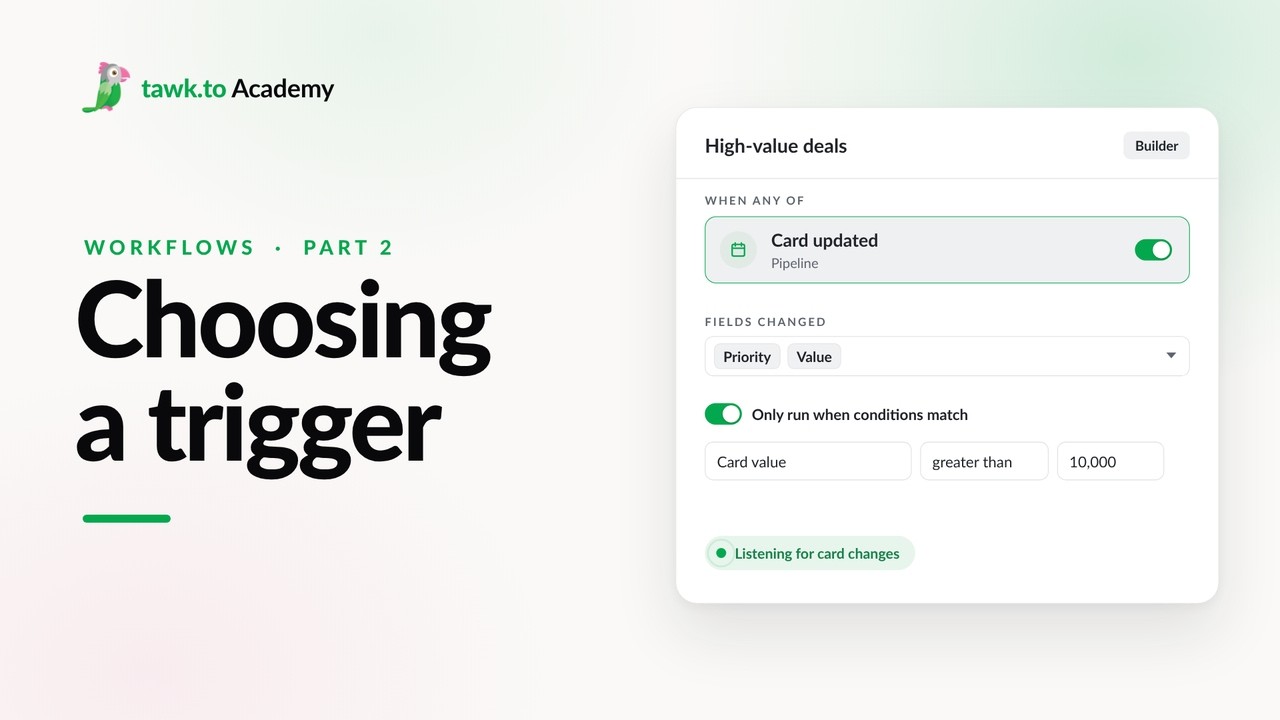
- Scheduled Workflows
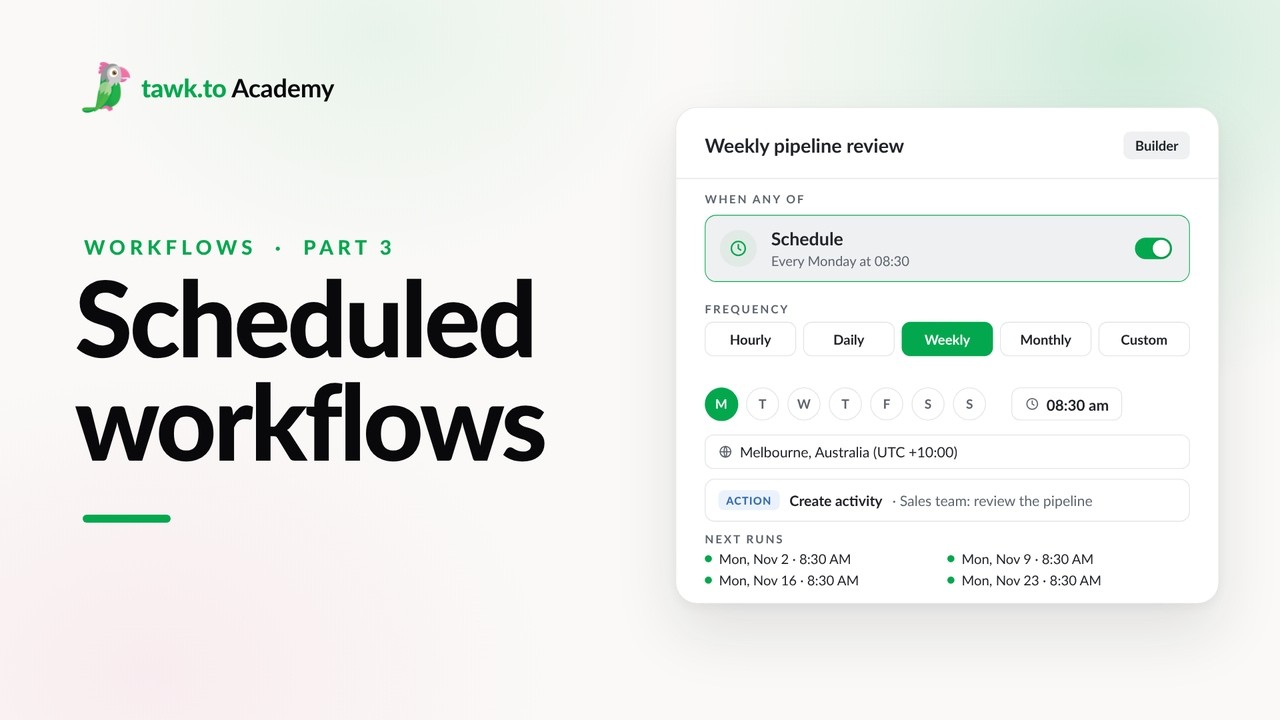
- Start a Workflow with a Webhook
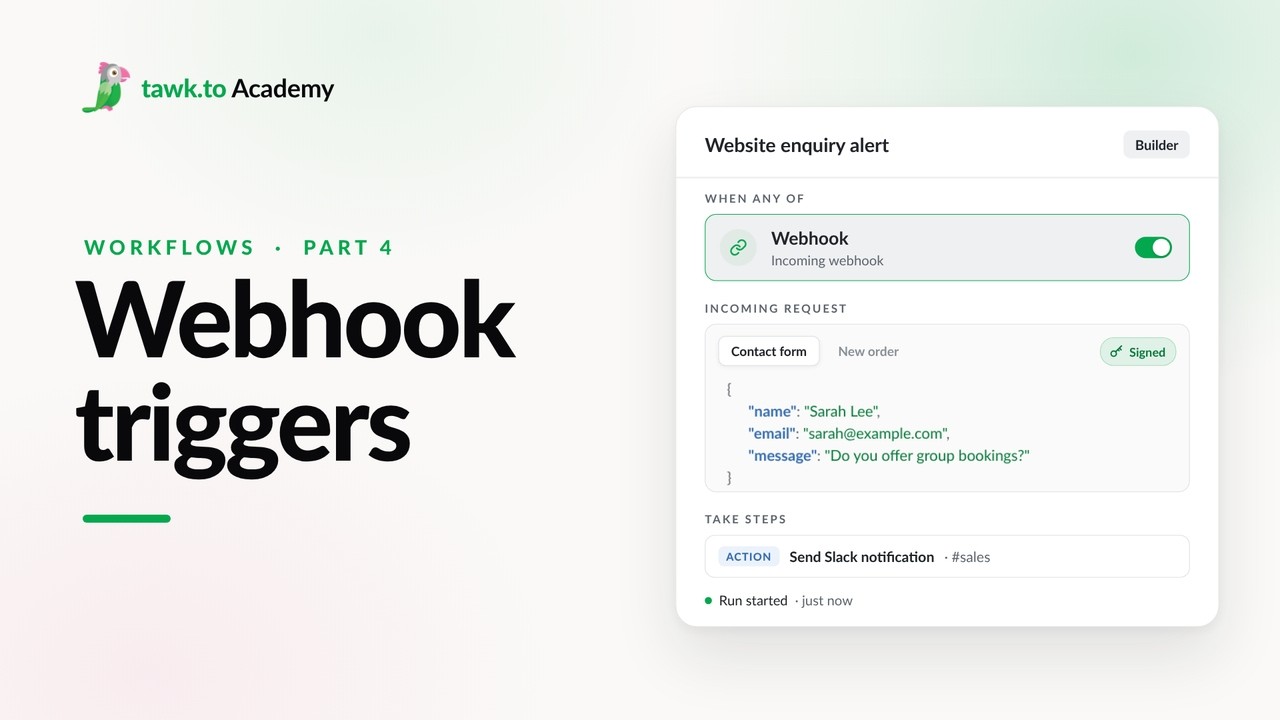
- Start a Workflow from an AI Agent
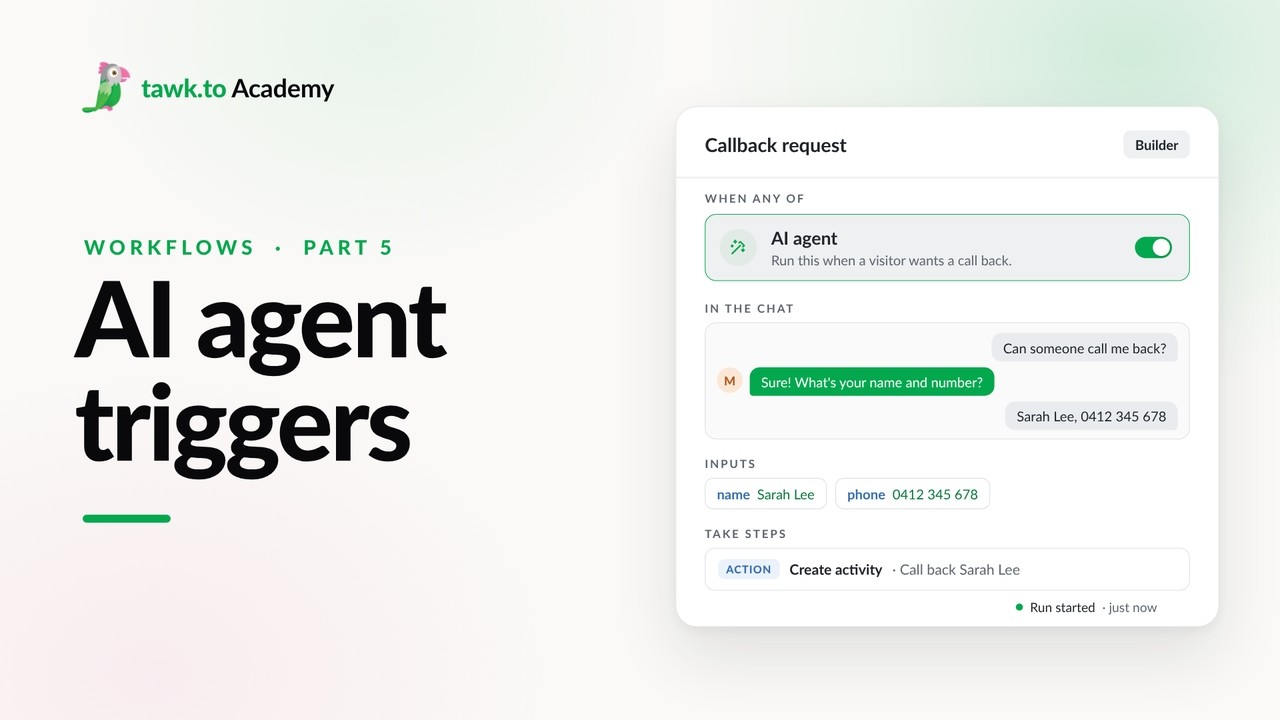
- Adding Actions to a Workflow
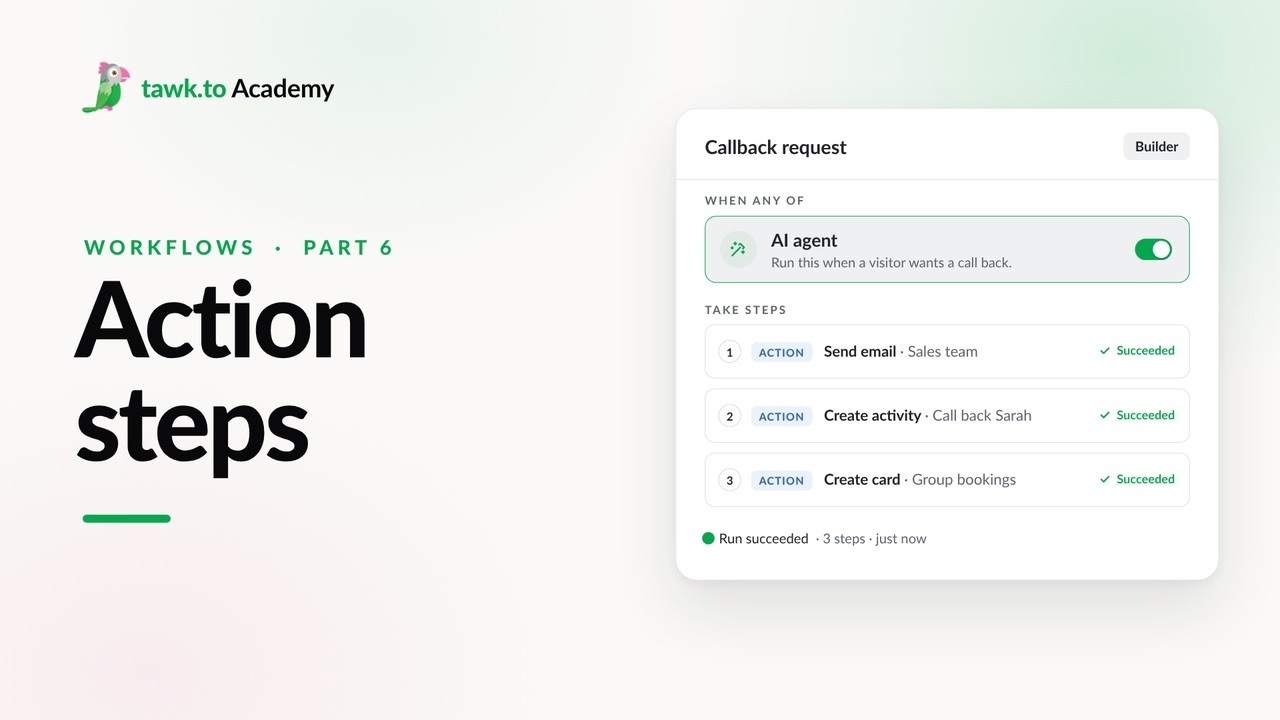
- Branching a Workflow with Conditions
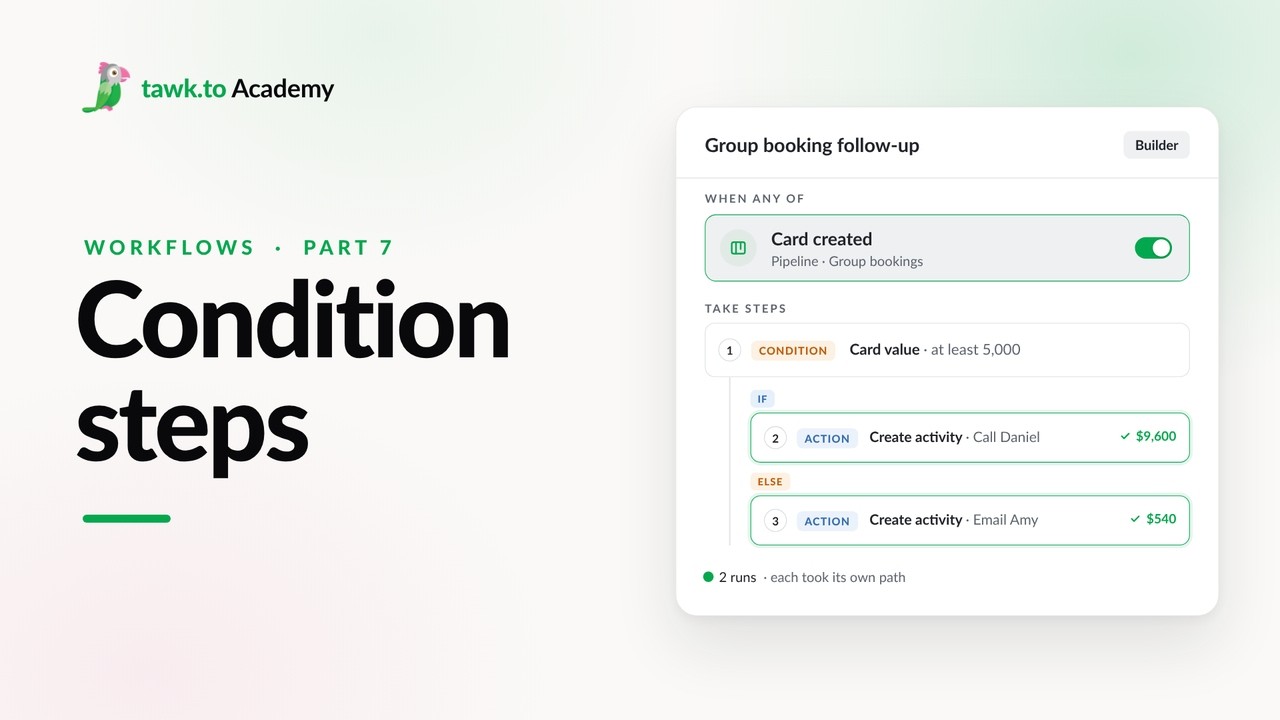
- Adding an AI Step to a Workflow
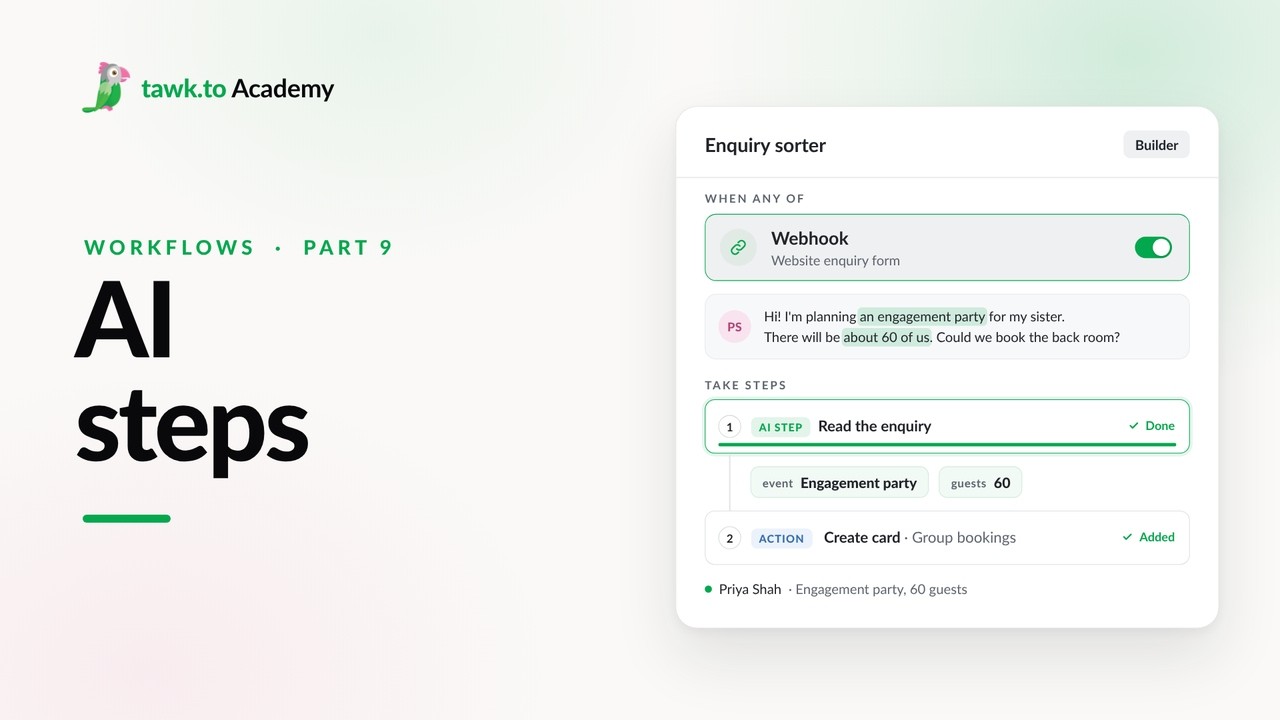
Open the tawk.to Academy
Every topic and 220+ videos in one place.