
Branching a Workflow with Conditions
Not every run should do the same thing. A Condition step checks the details, then sends each run down the right path. This video shows how to add a Condition step, set up IF and ELSE branches, and check more than one thing at once with all or any matching. You’ll also see how to add extra paths with ELSE IF, use a custom field path when the field you need isn’t listed, and how a Condition step differs from the trigger’s “Only run when conditions match” switch. Then see how to check which branch a run took in the Runs tab, with an example that sends high-value group bookings a High priority Call activity and everything else an Email activity.
· Share this video
· More in this topic
Workflows
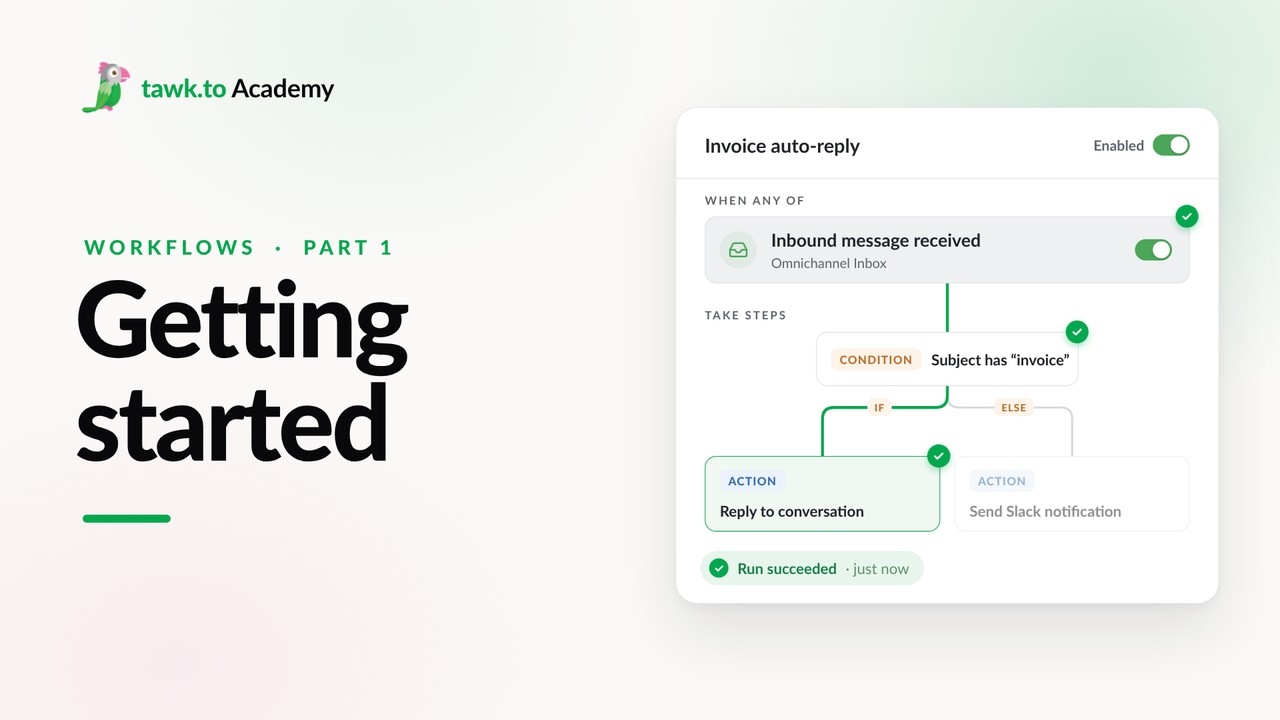
- Getting Started with Workflows
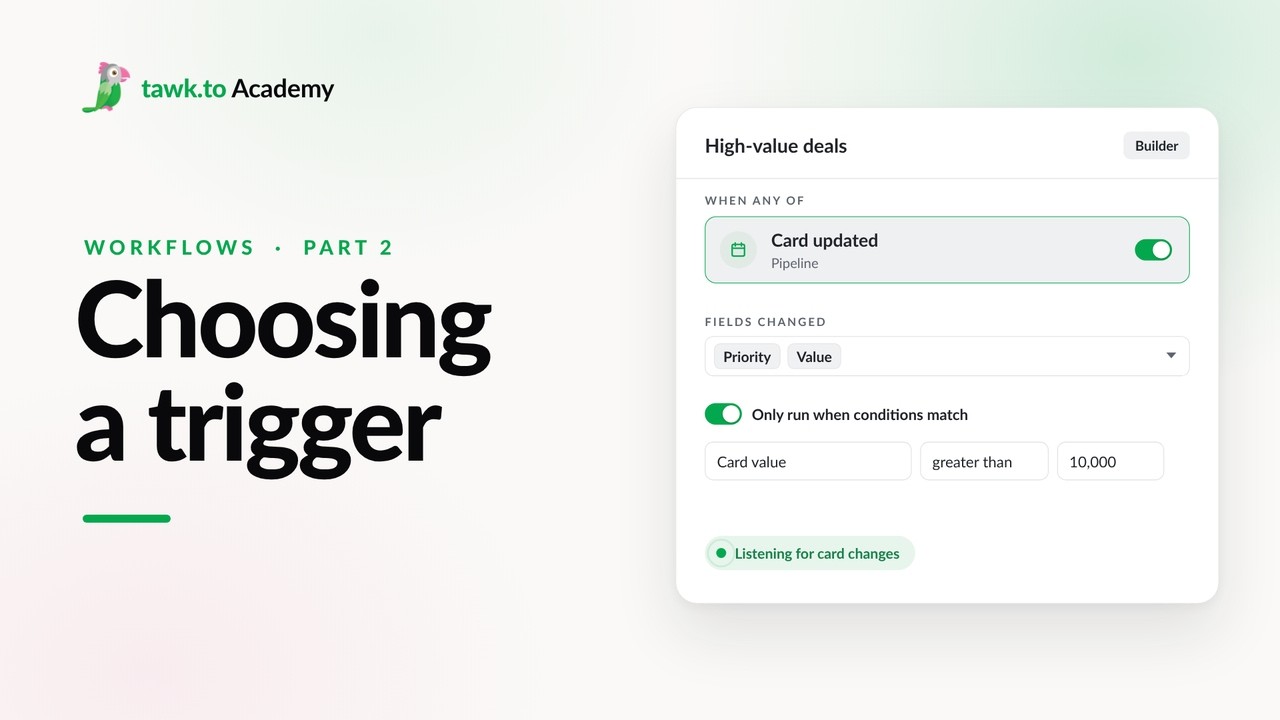
- Choosing a Workflow Trigger
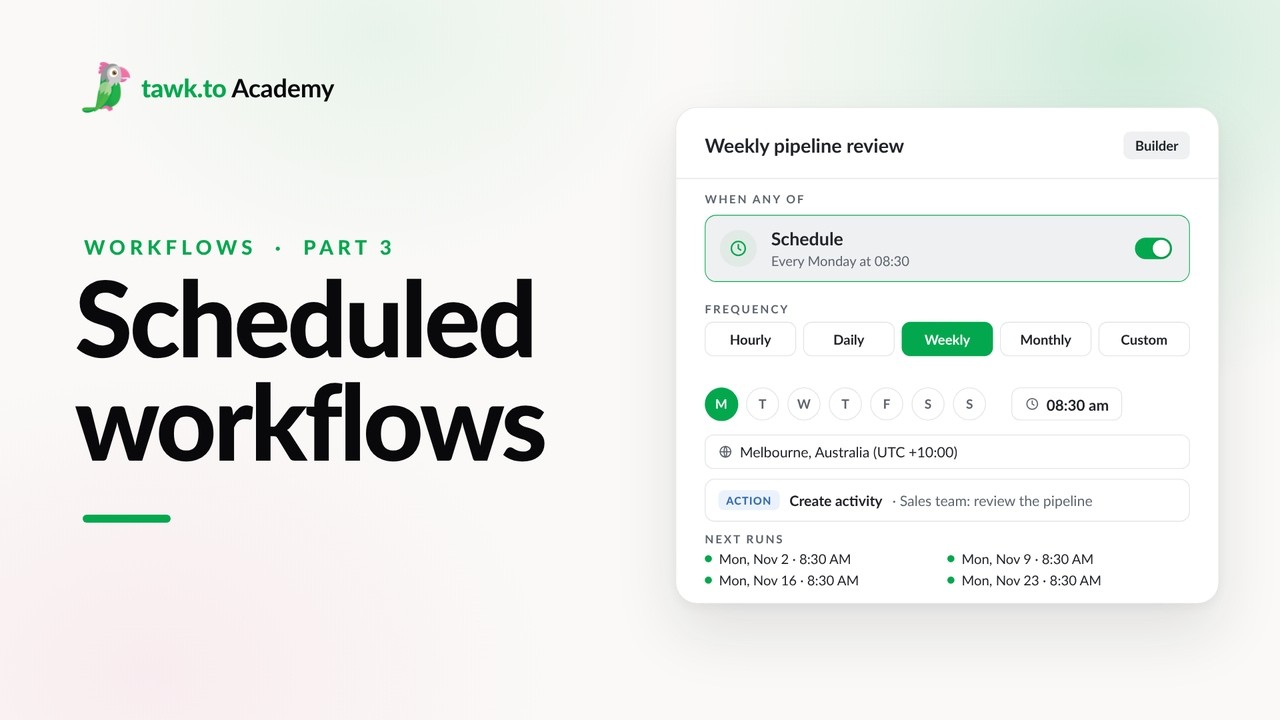
- Scheduled Workflows
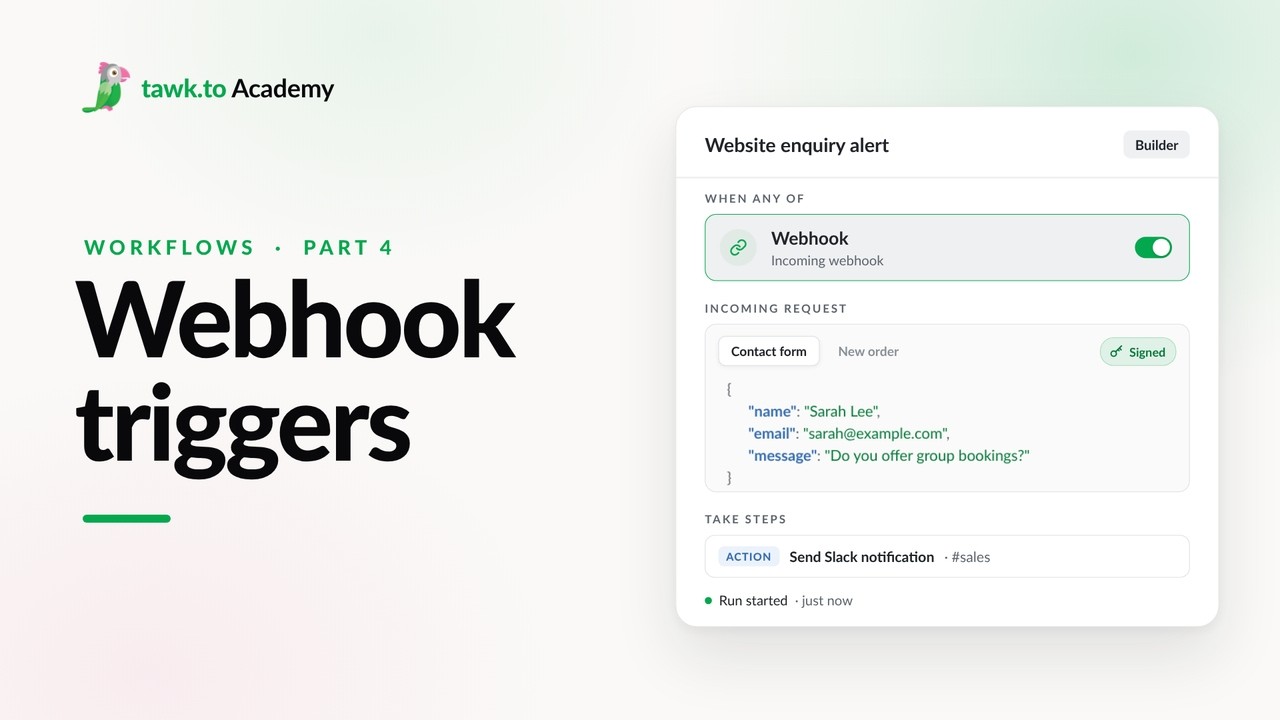
- Start a Workflow with a Webhook
- Start a Workflow from an AI Agent
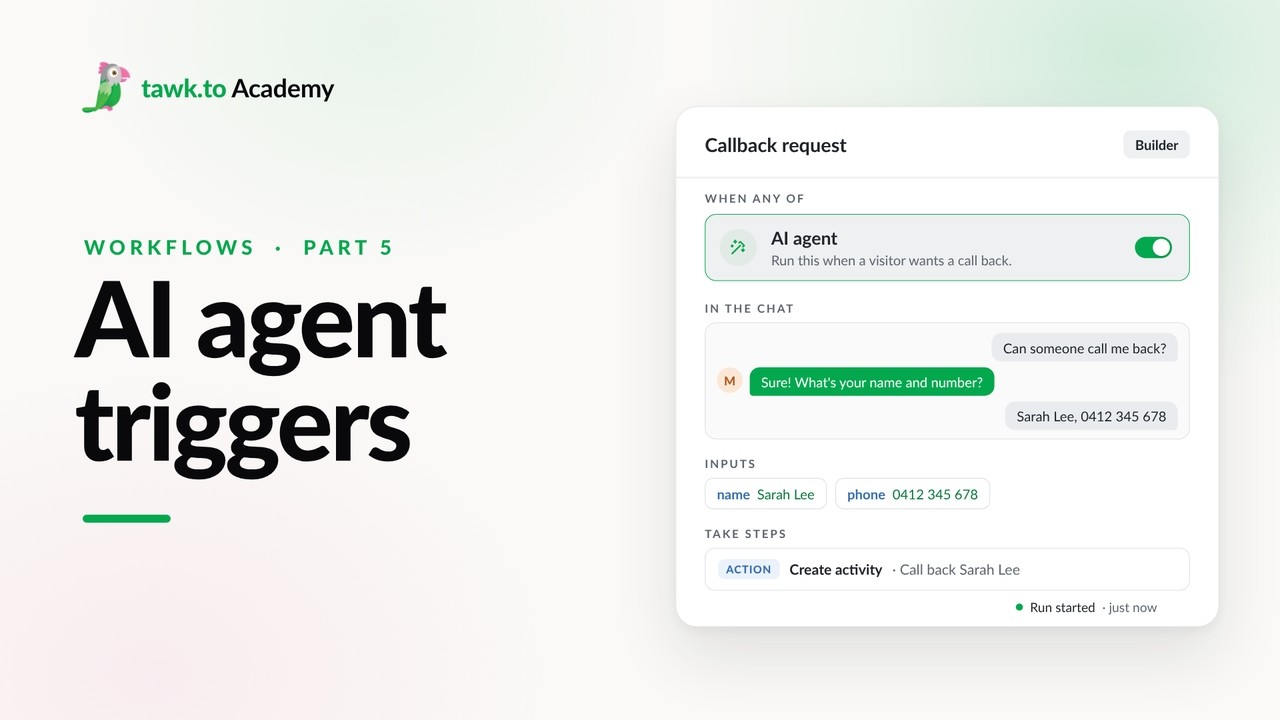
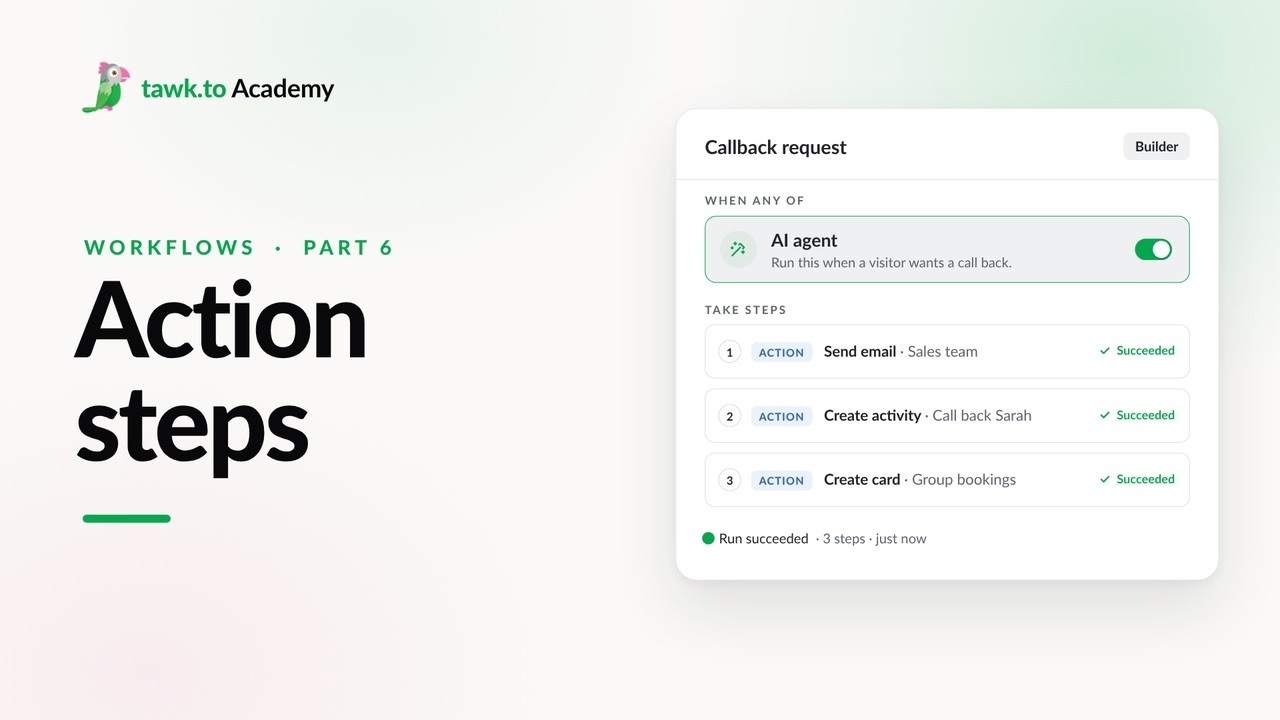
- Adding Actions to a Workflow
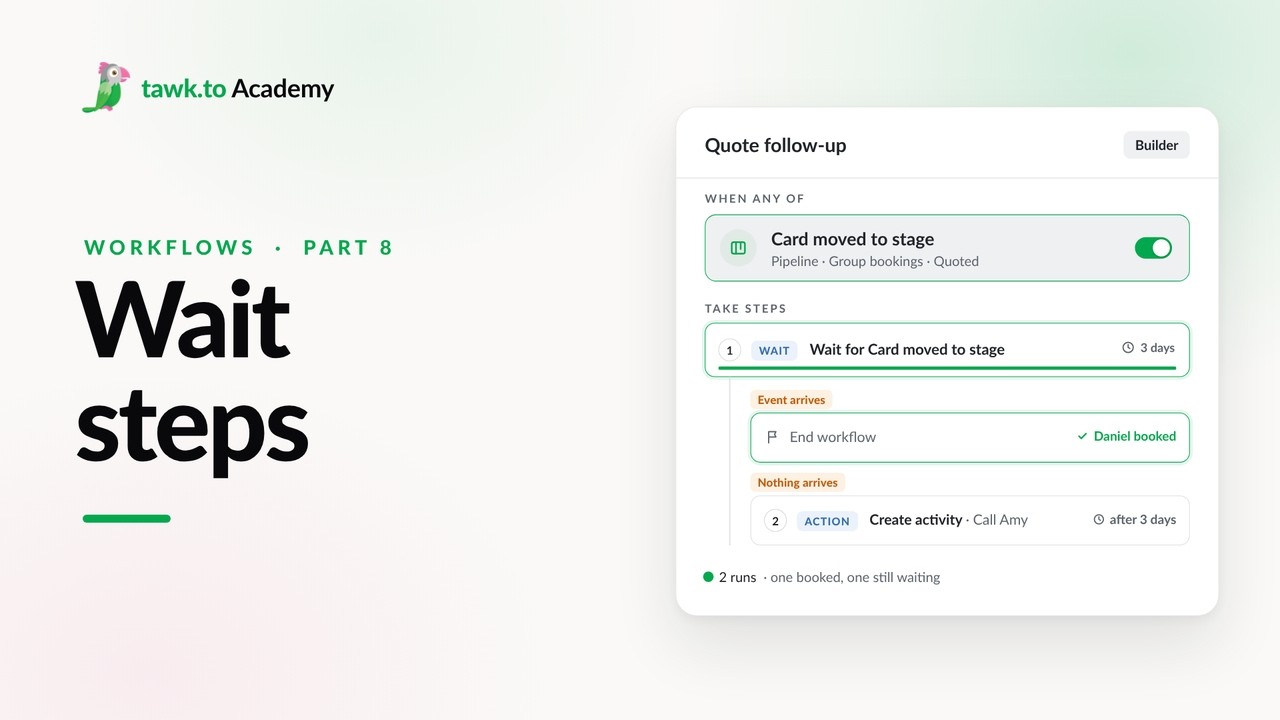
- Pausing a Workflow with Wait Steps
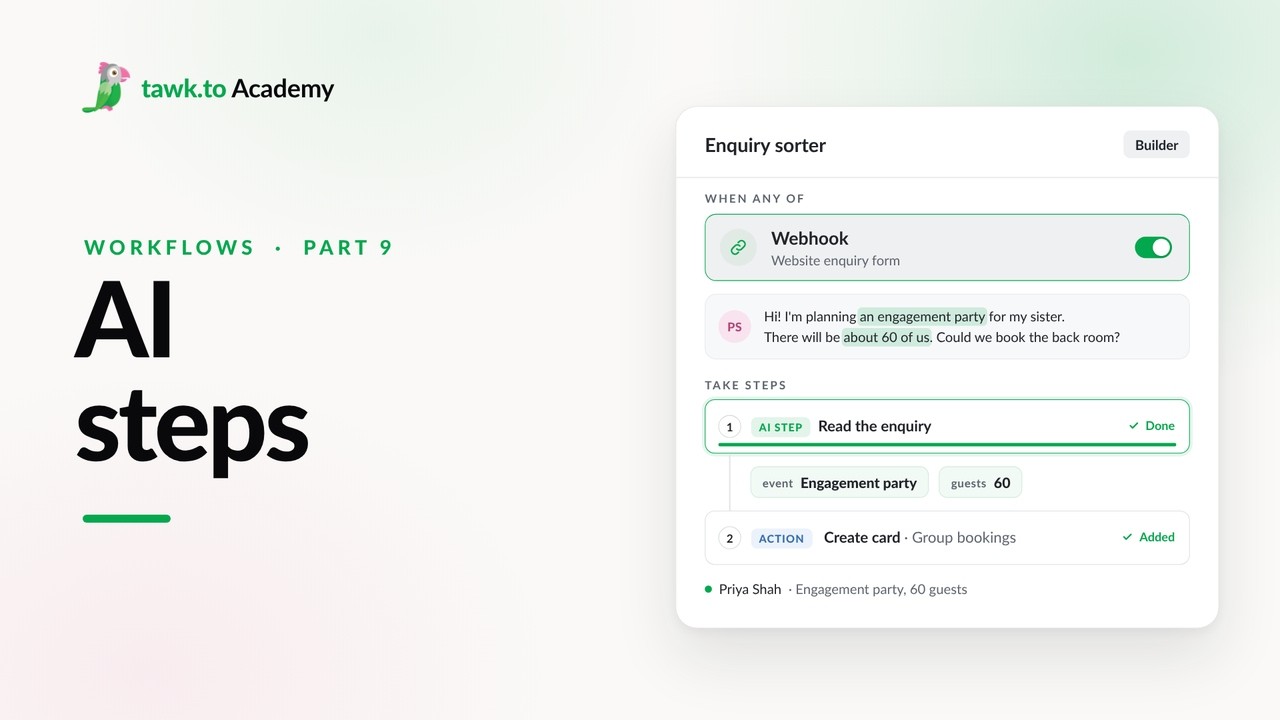
- Adding an AI Step to a Workflow
Open the tawk.to Academy
Every topic and 220+ videos in one place.