
Using you inbox's split view feature
Want to work faster in your tawk.to inbox? In this video, we’ll show you how to use the split-view feature to switch between compact and full view. Compact view splits the screen into two panels — a conversation list on the left and the active chat on the right — making it easy to handle multiple visitors at once. Prefer a distraction-free workspace? Switch back to full view for more focus on a single conversation. With just one click, you can toggle between the two layouts and choose the style that works best for you.
· Share this video
· More in this topic
Managing Conversations: Inbox, Chats & Contacts
- Adding direct messages and group chats to tabs
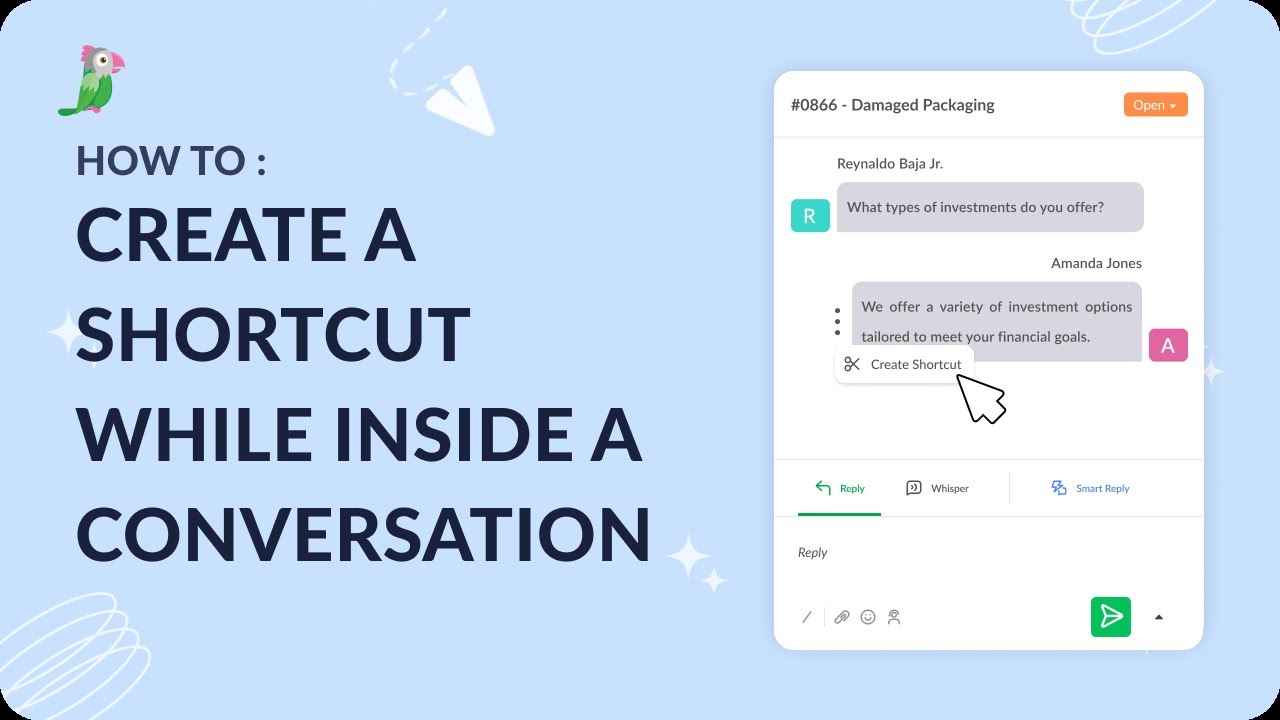
- Creating a shortcut while inside a conversation
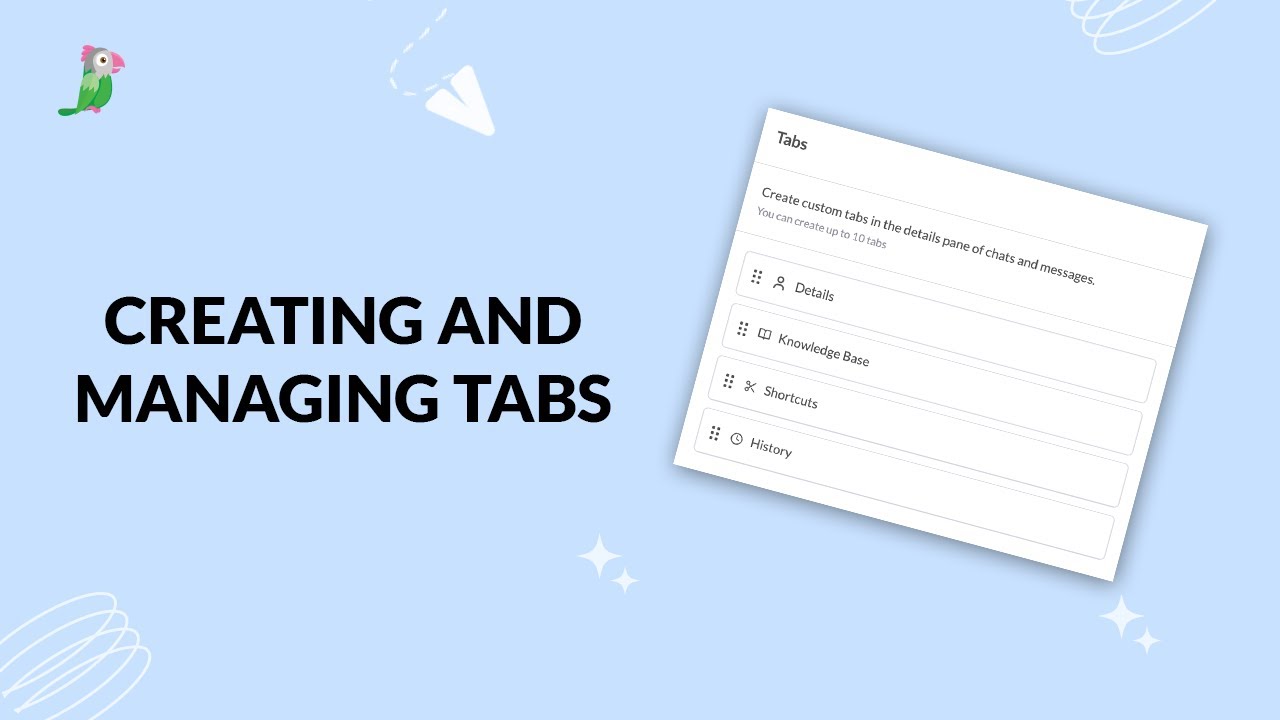
- Creating and managing tabs
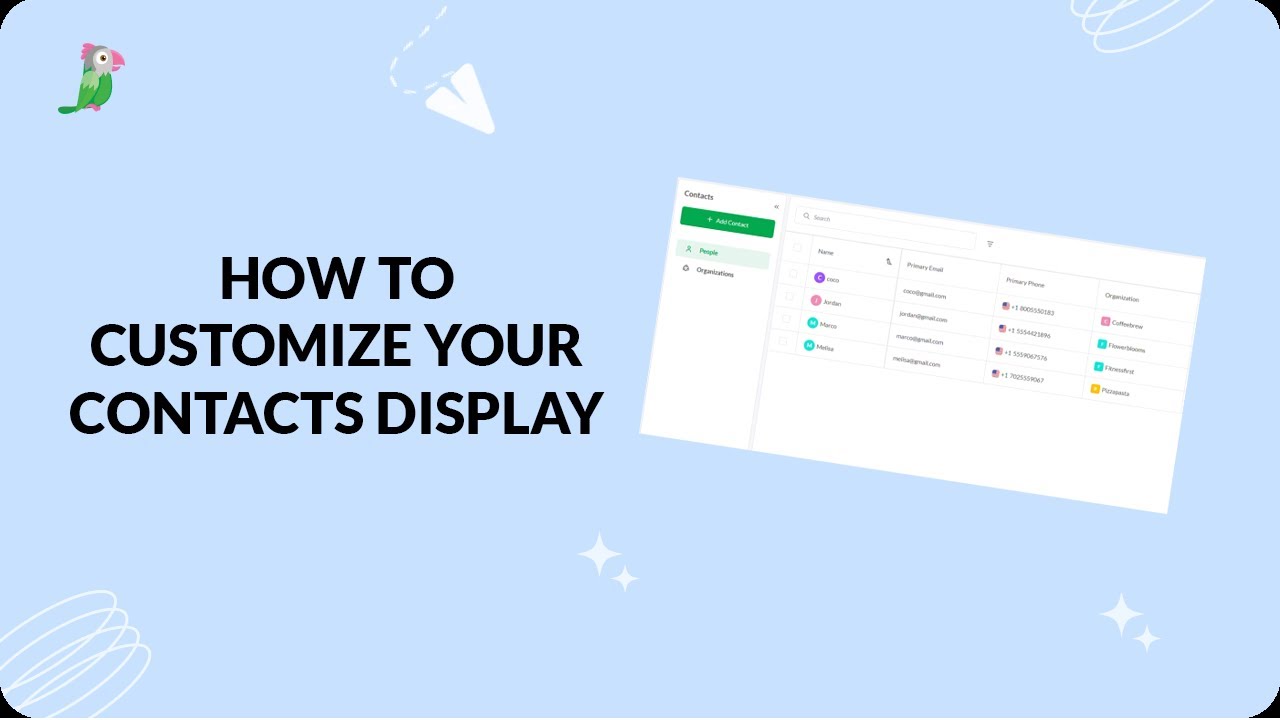
- Customize your tawk.to Contacts view
- Direct messages and group chats
- Getting started with the tawk to Inbox
- How image attachment works in tawk.to
- Create and manage contact segments
Open the tawk.to Academy
Every topic and 220+ videos in one place.